The height property is used to set an element’s height. This property does not include padding, borders, or margins. The height property can be specified by “px”, “cm”, “vh” or by percentages. The default value is “auto”.
If the min-height and max-height properties are used, it will override the height property.
If height is set to one of the numeric values like (r)em, px or %, and if if the content doesn’t fit inside of the particular height, this will cause overflowing. The CSS overflow property specifies, how the container will deal with the overflowing.
| Initial Value | auto |
| Applies to | all elements |
| Inherited | No. |
| Animatable | Yes. Height is animatable. |
| Version | CSS1 |
| DOM Syntax | object.style.height = “400px”; |
Syntax
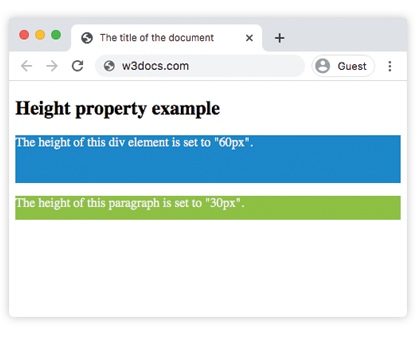
height: auto | length | initial | inherit;Example of the height property:
<!DOCTYPE html>
<html>
  <head>
    <title>The title of the document</title>
    <style>
      div {
        height: 60px;
        background-color: #1c87c9;
        color: #eee;
      }
      p {
        height: 30px;
        background-color: #8ebf42;
        color: #eee;
      }
    </style>
  </head>
  <body>
    <h2>Height property example</h2>
    <div>The height of this div element is set to "60px".</div>
    <p>The height of this paragraph is set to "30px".</p>
  </body>
</html>
Result
Example of the height property with the HTML <image> tag:
<!DOCTYPE html>
<html>
  <head>
    <title>The title of the document</title>
    <style>
      body {
        background-color: #ccc;
      }
      .height-normal {
        height: auto;
      }
      .height-big {
        height: 100px;
      }
    </style>
  </head>
  <body>
    <h2>Height property example</h2>
    <p>Here the height is set to "auto"</p>
    <img class="height-normal" src="/uploads/media/default/0001/01/003e5c463668d174ab70bea245c192d81901a4a6.png">
    <br>
    <hr>
    <p>The height for this image is defined as "100px".</p>
    <img class="height-big" src="/uploads/media/default/0001/01/003e5c463668d174ab70bea245c192d81901a4a6.png">
  </body>
</html>
Example of the height property with the “length” value:
<!DOCTYPE html>
<html>
  <head>
    <title>The title of the document</title>
    <style>
      .container {
        height: 50vh;
        border: 2px solid #1c87c9;
        padding: 5px;
      }
    </style>
  </head>
  <body>
    <h2>Height property example</h2>
    <div class="container">
      <p>Here the height is specified as "50vh".</p>
    </div>
  </body>
</html>
Example of the height property with all the values:
<!DOCTYPE html>
<html>
  <head>
    <title>The title of the document</title>
    <style>
      .red-container {
        height: 30vh;
        border: 2px solid #f45e30;
        color: #f45e30;
      }
      .blue-container {
        height: 40%;
        width: 30%;
        border: 2px solid #1c87c9;
        color: #1c87c9;
        margin-top: 20px;
      }
      .orange-container {
        height: 100px;
        border: 2px solid #f9fc35;
        color: #f9fc35;
        margin-top: 20px;
      }
      .green-container {
        height: auto;
        border: 2px solid #8ebf42;
        color: #8ebf42;
        margin-top: 20px;
      }
    </style>
  </head>
  <body>
    <h2>Height property example</h2>
    <div class="red-container">
      Height 30vh
      <div class="blue-container">
        Height 40%
      </div>
    </div>
    <div class="orange-container">
      Height 100px;
    </div>
    <div class="green-container">
      Height (auto)
    </div>
  </body>
</html>