The list-style-image property is used to put an image instead of the list item marker.
If the image has an inherent width and height, they will be used as width and height. If the image has an inherent ratio and an inherent height/width, they will be used as width and height. The used value of the missing dimension will be calculated from from the provided ratio and dimension.If the image has an inherent ratio and either an inherent height/width, the used height/width will be the same as the provided inherent height/width. The used value of the missing dimension will be calculated from from the provided ratio and dimension.
The list-style-image property is applied to list items and elements with display set to “list-item”. By default, this includes <li> elements. It also can be set on the parent elements: <ol> or <ul>.
| Initial Value | none |
| Applies to | List items. |
| Inherited | Yes. |
| Animatable | No. |
| Version | CSS1 |
| DOM Syntax | object.style.listStyleImage = “url(“image.jpg”)”; |
Syntax
list-style-image: none | url | initial | inherit;Example of the list-style-image property:
<!DOCTYPE html>
<html>
  <head>
    <title>Title of the document</title>
    <style>
      ul {
        list-style-image: none;
      }
    </style>
  </head>
  <body>
    <h2>List-style-image property example</h2>
    <ul>
      <li>List item 1</li>
      <li>List item 2</li>
      <li>List item 3</li>
    </ul>
  </body>
</html>
Result
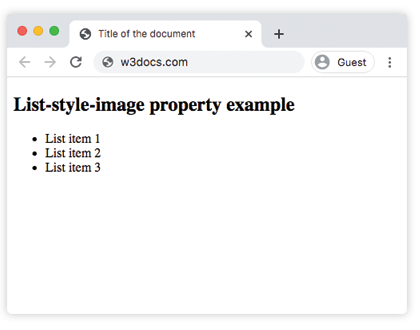
Example of the list-style-image property with an attached source URL of the image:
<!DOCTYPE html>
<html>
  <head>
    <title>Title of the document</title>
    <style>
      ul {
        list-style-image: url("/uploads/media/default/0001/01/03d3f916bd5c266dd5008d5c210478cc730437eb.png");
      }
    </style>
  </head>
  <body>
    <h2>List-style-image property example</h2>
    <ul>
      <li>List item 1</li>
      <li>List item 2</li>
      <li>List item 3</li>
    </ul>
  </body>
</html>