The table-layout property specifies the algorithms which are used to lay out table cells, rows and columns.
The table-layout property specifies two algorithms to lay out tables: fixed and automatic.
When the “automatic” table layout is specified, the table’s width is set by the width of its columns.
When the “fixed” table layout is specified, the table’s layout uses the table’s width, any specified width of columns, and border and cellspacing values. The advantage of the table-layout property set to “fixed” is its performance. On large tables, the table will not be displayed until the whole table is rendered. This creates an impression that the page loads quicker.
| Initial Value | auto |
| Applies to | Table and inline-table elements. |
| Inherited | No. |
| Animatable | No. |
| Version | CSS2 |
| DOM Syntax | object.style.tableLayout = “fixed”; |
Syntax
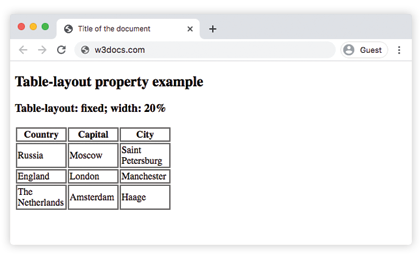
table-layout: auto | fixed | initial | inherit;Example of the table-layout property with the “fixed” value:
<!DOCTYPE html>
<html>
  <head>
    <title>Title of the document</title>
    <style>
      th,
      td {
        border: 2px solid #666;
      }
      table.t1 {
        table-layout: fixed;
        width: 40%;
      }
    </style>
  </head>
  <body>
    <h2>Table-layout property example</h2>
    <h3>Table-layout: fixed; width: 20%</h3>
    <table class="t1">
      <tr>
        <th>Country</th>
        <th>Capital</th>
        <th>City</th>
      </tr>
      <tr>
        <td>Russia</td>
        <td>Moscow</td>
        <td>Saint Petersburg</td>
      </tr>
      <tr>
        <td>England</td>
        <td>London</td>
        <td>Manchester</td>
      </tr>
      <tr>
        <td>The Netherlands</td>
        <td>Amsterdam</td>
        <td>Haage</td>
      </tr>
    </table>
  </body>
</html>
Result
Example of the table-layout property with the “auto” and “fixed” values:
<!DOCTYPE html>
<html>
  <head>
    <title>Title of the document</title>
    <style>
      th,
      td {
        border: 2px solid #666;
      }
      table.t1 {
        table-layout: fixed;
        width: 250px;
      }
      table.t2 {
        table-layout: auto;
        width: 100%;
      }
    </style>
  </head>
  <body>
    <h2>Table-layout property example</h2>
    <h3>Table-layout: fixed; width: 160px</h3>
    <table class="t1">
      <tr>
        <th>Country</th>
        <th>Capital</th>
        <th>City</th>
      </tr>
      <tr>
        <td>Russia</td>
        <td>Moscow</td>
        <td>Saint Petersburg</td>
      </tr>
      <tr>
        <td>England</td>
        <td>London</td>
        <td>Manchester</td>
      </tr>
      <tr>
        <td>The Netherlands</td>
        <td>Amsterdam</td>
        <td>Haage</td>
      </tr>
    </table>
    <h3>Table-layout: auto; width: 100%</h3>
    <table class="t2">
      <tr>
        <th>Country</th>
        <th>Capital</th>
        <th>City</th>
      </tr>
      <tr>
        <td>Russia</td>
        <td>Moscow</td>
        <td>Saint Petersburg</td>
      </tr>
      <tr>
        <td>England</td>
        <td>London</td>
        <td>Manchester</td>
      </tr>
      <tr>
        <td>The Netherlands</td>
        <td>Amsterdam</td>
        <td>Hague</td>
      </tr>
    </table>
  </body>
</html>