In this tutorial you will learn how to use Bootstrap card component.
Using the Bootstrap Cards
Bootstrap card is a flexible and extensible content container. It includes options for headers and footers, a wide variety of content, contextual background colors, and powerful display options. Card replaces panel, well, and thumbnail components in old Bootstrap 3 version.
In the following sections, you will see what you can do with the card component.
Creating a Basic Card
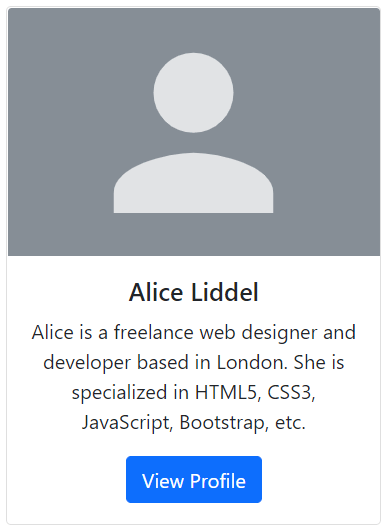
The card markup is pretty straight forward. The outer wrapper require the base class .card, whereas content can be placed inside the .card-body element. The following example will show you how to create a card with a picture, mixed with some text content and a button.
Example
<div class="card" style="width: 300px;">
    <img src="images/sample.svg" class="card-img-top" alt="...">
    <div class="card-body text-center">
        <h5 class="card-title">Alice Liddel</h5>
        <p class="card-text">Alice is a freelance web designer and developer based in London. She is specialized in HTML5, CSS3, JavaScript, Bootstrap, etc.</p>
        <a href="#" class="btn btn-primary">View Profile</a>
    </div>
</div>
— The output of the above example will look something like this:
Note: Card doesn’t have fixed width, they’ll occupy the full width of its parent element. So, if you need a fixed width card you need to apply the width property on card yourself. Also, card have no margin by default, use spacing utility classes if needed.
Content Types for Card Component
The card component support a wide variety of content, including images, text, list groups, links, navs, and more. Here are the examples of what’s supported by the card.
Body Only Card
You can simply use .card with .card-body within, whenever you need to create a padded box.
Example
<div class="card">
    <div class="card-body">This is some text within a padded box.</div>
</div>
— The output of the above example will look something like this:

Card with Titles, Text, and Links
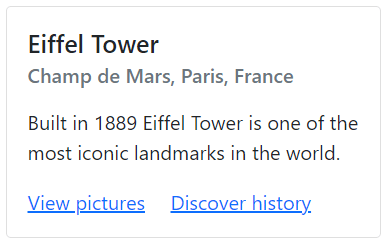
Further, you can also place title and links inside the card along with text, like this:
Example
<div class="card" style="width: 300px;">
    <div class="card-body">
        <h5 class="card-title">Eiffel Tower</h5>
        <h6 class="card-subtitle mb-3 text-muted">Champ de Mars, Paris, France</h6>
        <p class="card-text">Built in 1889 Eiffel Tower is one of the most iconic landmarks in the world.</p>
        <a href="#" class="card-link">View pictures</a>
        <a href="#" class="card-link">Discover history</a>
    </div>
</div>
— The output of the above example will look something like this:
Card with Header and Footer
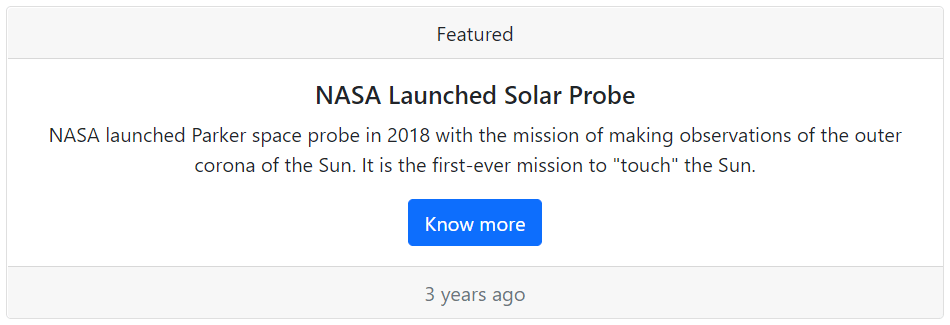
You can also add header and footer within your cards using the .card-header and .card-footer class, respectively. Let’s take a look at the following example:
Example
<div class="card text-center">
    <div class="card-header">Featured</div>
    <div class="card-body">
        <h5 class="card-title">NASA Launched Solar Probe</h5>
        <p class="card-text">NASA launched Parker space probe in 2018 with the mission of making observations of the outer corona of the Sun. It is the first-ever mission to "touch" the Sun.</p>
        <a href="#" class="btn btn-primary">Know more</a>
    </div>
    <div class="card-footer text-muted">3 years ago</div>
</div>
— The output of the above example will look something like this:
Tip: You can use text align utility classes such as .text-center and .text-end to align card’s content to the center and right end, respectively. By default they’re left aligned.
Placing List Groups within Card
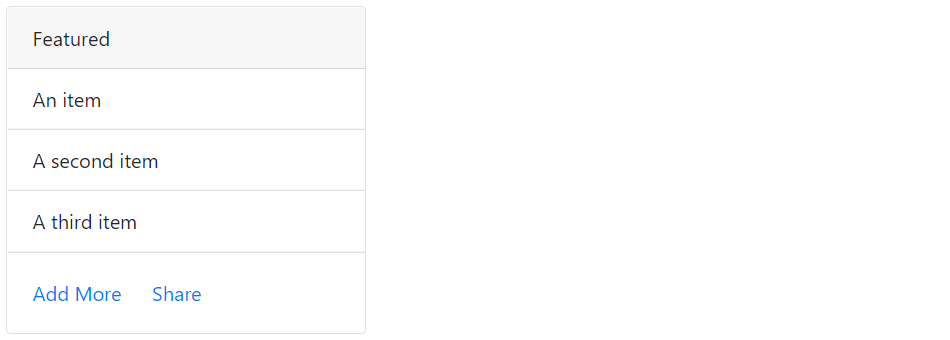
You can also place list groups inside the card along with other content types, as shown here.
Example
<div class="card" style="width: 300px;">
    <div class="card-header">Featured</div>
    <ul class="list-group list-group-flush">
        <li class="list-group-item">An item</li>
        <li class="list-group-item">A second item</li>
        <li class="list-group-item">A third item</li>
    </ul>
    <div class="card-body">
        <a href="#" class="card-link">Add More</a>
        <a href="#" class="card-link">Share</a>
    </div>
</div>
— The output of the above example will look something like this:
Mix and Match Multiple Content Types within Card
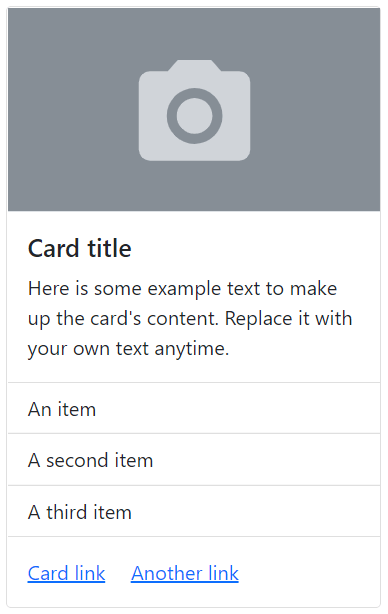
Feel free to mix and match multiple content types to create the card you need. The following example will create a fixed-width card with an image, text, list group, and hyperlinks.
Example
<div class="card" style="width: 300px;">
    <img src="images/thumbnail.svg" class="w-100 border-bottom" alt="...">
    <div class="card-body">
        <h5 class="card-title">Card title</h5>
        <p class="card-text">Here is some example text to make up the card's content. Replace it with your own text anytime.</p>
    </div>
    <ul class="list-group list-group-flush">
        <li class="list-group-item">An item</li>
        <li class="list-group-item">A second item</li>
        <li class="list-group-item">A third item</li>
    </ul>
    <div class="card-body">
        <a href="#" class="card-link">Card link</a>
        <a href="#" class="card-link">Another link</a>
    </div>
</div>
— The output of the above example will look something like this:
Adding Navigation to Cards
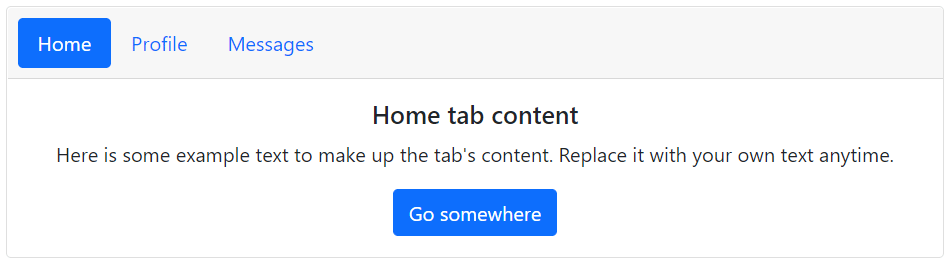
You can also add Bootstrap’s nav components such as tabs and pills to the card header.
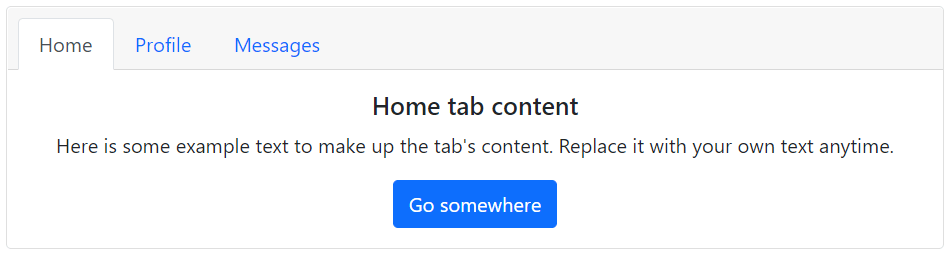
To add tabs navigation to a card simply place the tabs markup inside the card header, and the tabs content inside the card body. You are also required to use an additional class .card-header-tabs on the .nav element along with the class .nav-tabs for proper alignment.
Let’s try out the following example which creates an elegant tabbed navigation.
Example
<div class="card text-center">
    <div class="card-header">
        <ul class="nav nav-tabs card-header-tabs">
            <li class="nav-item">
                <a href="#home" class="nav-link active" data-bs-toggle="tab">Home</a>
            </li>
            <li class="nav-item">
                <a href="#profile" class="nav-link" data-bs-toggle="tab">Profile</a>
            </li>
            <li class="nav-item">
                <a href="#messages" class="nav-link" data-bs-toggle="tab">Messages</a>
            </li>
        </ul>
    </div>
    <div class="card-body">
        <div class="tab-content">
            <div class="tab-pane fade show active" id="home">
                <h5 class="card-title">Home tab content</h5>
                <p class="card-text">Here is some example text to make up the tab's content. Replace it with your own text anytime.</p>
                <a href="#" class="btn btn-primary">Go somewhere</a>
            </div>
            <div class="tab-pane fade" id="profile">
                <h5 class="card-title">Profile tab content</h5>
                <p class="card-text">Here is some example text to make up the tab's content. Replace it with your own text anytime.</p>
                <a href="#" class="btn btn-primary">Go somewhere</a>
            </div>
            <div class="tab-pane fade" id="messages">
                <h5 class="card-title">Messages tab content</h5>
                <p class="card-text">Here is some example text to make up the tab's content. Replace it with your own text anytime.</p>
                <a href="#" class="btn btn-primary">Go somewhere</a>
            </div>
        </div>
    </div>
</div>
— The output of the above example will look something like this:
Similarly, you can add pills nav to the card by using an additional class .card-header-pills along with the class .nav-pills on the .nav element, as shown below:
Example
<div class="card text-center">
    <div class="card-header">
        <ul class="nav nav-pills card-header-pills">
            <li class="nav-item">
                <a href="#home" class="nav-link active" data-bs-toggle="tab">Home</a>
            </li>
            <li class="nav-item">
                <a href="#profile" class="nav-link" data-bs-toggle="tab">Profile</a>
            </li>
            <li class="nav-item">
                <a href="#messages" class="nav-link" data-bs-toggle="tab">Messages</a>
            </li>
        </ul>
    </div>
    <div class="card-body">
        <div class="tab-content">
            <div class="tab-pane fade show active" id="home">
                <h5 class="card-title">Home tab content</h5>
                <p class="card-text">Here is some example text to make up the tab's content. Replace it with your own text anytime.</p>
                <a href="#" class="btn btn-primary">Go somewhere</a>
            </div>
            <div class="tab-pane fade" id="profile">
                <h5 class="card-title">Profile tab content</h5>
                <p class="card-text">Here is some example text to make up the tab's content. Replace it with your own text anytime.</p>
                <a href="#" class="btn btn-primary">Go somewhere</a>
            </div>
            <div class="tab-pane fade" id="messages">
                <h5 class="card-title">Messages tab content</h5>
                <p class="card-text">Here is some example text to make up the tab's content. Replace it with your own text anytime.</p>
                <a href="#" class="btn btn-primary">Go somewhere</a>
            </div>
        </div>
    </div>
</div>
— The output of the above example will look something like this: