There are following three ways through which we can add the JavaScript code into the HTML document:
- Include the JavaScript code in <head>…</head> tag.
- Include the JavaScript code between the <Body> …</Body> tag and after the closing of the body tag.
- Link the separate file of JavaScript in HTML
Include the JavaScript Code in <head> tag.
In this section, you will learn to include the JavaScript code between the <head> and </head> tag.
Syntax
<html>
<head>
<script>
JavaScript Code
Statement 1
Statement 2
......
Statement N
</script>
</head>
<body>
</body>
</html>
In the above syntax, the JavaScript code written between the <script>……. </script> tag is put between the <head> and </head> tag in HTML file.
Example
<!DOCTYPE html>
<html>
<head>
<meta name="viewport" content="width=device-width, initial-scale=1">
<title>
Include JavaScript in head tag
</title>

<script>
function check()
{
/* The following statement is used to display a Confirm dialog box on a webpage with the statement which is enclosed in the brackets. */
confirm("Your JavaScript Code Run");
}
</script>
<style>
/* The following tag selector button use the different properties for the Button. */
button {
  background-color: red;
padding: 16px 20px;
  margin: 8px 0;
  border: none;
  cursor: pointer;
  color: white;
  width: 100%;
  opacity: 0.9;
}
/* The following tag selector hover use the opacity property for the Button which select button when you mouse over it. */
button:hover {
opacity: 1;
}
</style>
</head>
<body>
<form>
<!-- The following statement use the Button type which is used to call a function of JavaScript when this button is clicked. -->
<button type="button" onclick="check()"> Click Me for running a JavaScript Code </button>

</form>
</body>
</html>
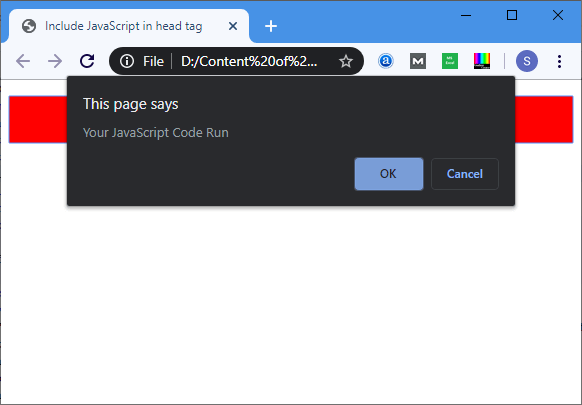
Output:
2. i) Include the JavaScript code in the <body> tag.
In this section, you will learn about how to include the JavaScript code in-between the <body> and </body> tag.
Syntax
<html>
<head>
</head>
<body>

<script>
JavaScript Code
Statement 1
Statement 2
......
Statement N
</script>
</body>
</html>
In the above syntax, the JavaScript code written between the <script>……. </script> tag is put in-between of the <body> and </body> tag in HTML file.
Example
<!DOCTYPE html>
<html>
<head>
<meta name="viewport" content="width=device-width, initial-scale=1">
<title>
Include JavaScript in body tag
</title>
<style>
/* The following tag selector button use the different properties for the Button. */
button {
  background-color: red;
   padding: 16px 20px;
  margin: 8px 0;
  border: none;
  cursor: pointer;
 color: white;
  width: 100%;
  opacity: 0.9;
}
/* The following tag selector hover use the opacity property for the Button which select button when you mouse over it. */
button:hover {
opacity: 1;
}
</style>
</head>
<body>
<form>
<script>
function bdy_JS ()
{
/* The following statement is used to display a Confirm dialog box on a webpage with the statement which is enclosed in the brackets. */
confirm("Your JavaScript Code Run which is used in the Body tag");
}
</script>

<!-- The following statement use the Button type which is used to call a function of JavaScript when this button is clicked. -->
<button type="button" onclick="bdy_JS()"> Click Me for running a JavaScript Code </button>
</form>
</body>
</html>
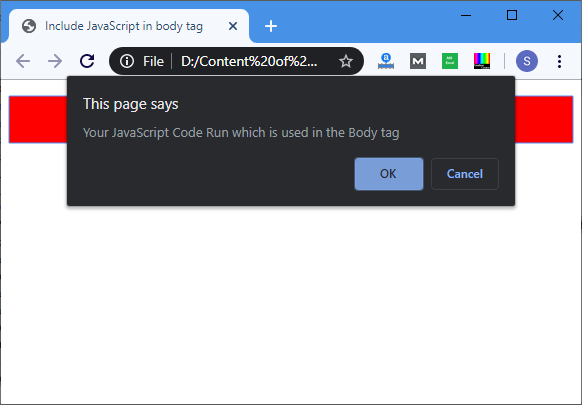
Output:
ii) Include the JavaScript code after the <body> tag.
In this section, you will learn to include the JavaScript code after the <body> tag.
Syntax
<html>
<head>
</head>
<body>
</body>
<script>
JavaScript Code
Statement 1
Statement 2
......
Statement N
</script>

</html>
In the above syntax, the JavaScript code written between the <script>……. </script> tag is put after the <body>…</body> tag in HTML file.
Example
<!DOCTYPE html>
<html>
<head>
<meta name="viewport" content="width=device-width, initial-scale=1">
<title>
Include JavaScript code after the body tag
</title>
<style>
/* The following tag selector button use the different properties for the Button. */
button {
  background-color: red;
  color: white;
  margin: 8px 0;
  border: none;
  cursor: pointer;
  width: 100%;
  padding: 16px 20px;
  opacity: 0.9;
}
/* The following tag selector hover use the opacity property for the Button which select button when you mouse over it. */
button:hover {
opacity: 1;
}
</style>
</head>
<body>
<form>
<!-- The following statement use the Button type which is used to call a function of JavaScript when this button is clicked. -->
<button type="button" onclick="bdy_JS()"> Click Me for running a JavaScript Code </button>

</form>
</body>
<script>
function bdy_JS ()
{
/* The following statement is used to display a Confirm dialog box on a webpage with the statement which is enclosed in the brackets. */
confirm("Your JavaScript Code Run which is used after the Body tag");
}
</script>
</html>
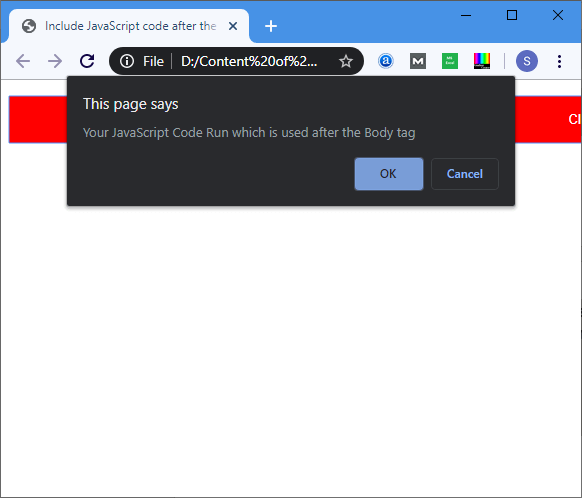
Output:
Link the Separate file of JavaScript in HTML
In this section, you will learn to include the file of JavaScript code in the HTML file.
Syntax
<html>
<head>
<script src="Name_of_JavaScript_file>
</script>
</head>
<body>
</body>
</html>
In the above syntax, the src is an attribute of <script> tag used for specifying the name of the JavaScript file.
Example
The following code is written in JavaScript (inc), which is saved by .js extension.
function funcjs ()
{
/* The following statement displays a Confirm dialog box on a webpage with the statement which is enclosed in the brackets. */
confirm("Your JavaScript Code Run which is used after the Body tag");
}
The following code is written in an HTML file which uses the src attribute in the <script> tag to specify the above JavaScript file.
<!DOCTYPE html>
<html>
<head>
<meta name="viewport" content="width=device-width, initial-scale=1">
<title>
Include JavaScript file in head tag of HTML file
</title>
<script src="inc.js">
</script>
<style>
/* The following tag selector button use the different properties for the Button. */
button {
  background-color: red;
  color: white;
margin: 8px 0;
  border: none;
  cursor: pointer;
  width: 100%;
  padding: 16px 20px;
  opacity: 0.9;
}
/* The following tag selector hover use the opacity property for the Button which select button when you mouse over it. */
button:hover {
opacity: 1;
}
</style>
</head>
<body>
<form>
<!-- The following statement use the Button type which is used to call a function of JavaScript when this button is clicked. -->

<button type="button" onclick="funcjs()"> Click Me for running a JavaScript Code </button>
</form>
</body>
</html>
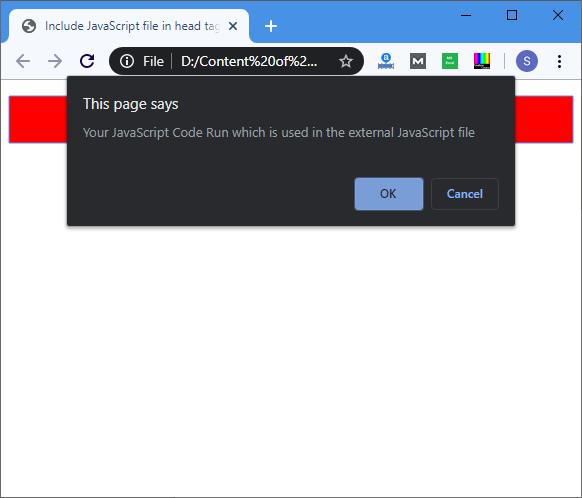
Output: