In HTML, we can change the font using the following two ways:
- Using HTML tag
- Using style attribute
1. Using HTML tag
If we want to change the font of a text using Html tag which is to be displayed on a web page, we have to follow the steps which are given below. Using these steps, we can easily change the font:
Step 1: Firstly, we have to type the Html code in any text editor or open the existing Html file in the text editor in which we want to use the Html tag.
<!Doctype Html>
<Html>
<Head>
<Title>
Change font Using HTML tag
</Title>
</Head>
<Body>
Hello JavaTpoint! <br>
Hello User! <br>
How are You?
</Body>
</Html>
Step 2: Now, move the cursor at the starting of that text whose font we want to change. And then, type the empty Html <font> tag at that point.
<font> Single Line text and statements Step 3: Then, you have to close the font tag at the end of the text whose font we want to change.
<font> Single Line text and statements </font> Step 4: Now, we have to add the attribute of font tag whose name is “face“. So, type the face attribute within the starting <font> tag. And, then we have to give the name of font. So, type the name of font in the face attribute as described in the following block.
<!Doctype Html>
<Html>
<Head>
<Title>
Change font Using HTML tag
</Title>
</Head>
<Body>
<font face="Courier">
Hello JavaTpoint! <br>
</font>
<font face="Arial">
Hello User! <br>
How are You?
</font>
</Body>
</Html>
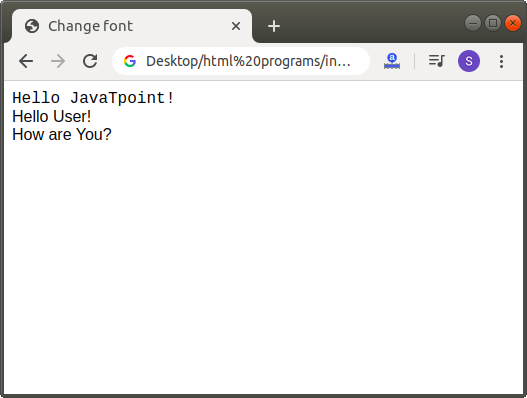
Step 5: And, at last, we have to save the Html code and run the code. After execution, we will see the following output in the browser:
2. Using Style attribute
If we want to change the font of a text using style attribute which is to be displayed on a web page, we have to follow the steps which are given below. Using these steps, we can easily change the font.
Step 1: Firstly, we have to type the Html code in any text editor or open the existing Html file in the text editor in which we want to use the style attribute.
<!Doctype Html>
<Html>
<Head>
<Title>
Change font using CSS Tag
</Title>
</Head>
<Body>
JavaTpoint is the Best Site for providing education.
</Body>
</Html>
Step 2: Now, move the cursor at the starting of that text whose font we want to change. And then, type the CSS style attribute within the <p> (paragraph) tag.
<p style="font-family:Courier; "> Any Text Step 3: Then, you have to close the paragraph tag at the end of the text whose font we want to change.
<p style="font-family:Courier; "> Any Text </p> Step 4: And, at last, save the following Html code which changes the font using the CSS style attribute.
<!Doctype Html>
<Html>
<Head>
<Title>
Change font using CSS Tag
</Title>
</Head>
<Body>
<p style="font-family:Courier; ">
JavaTpoint is the Best Site for providing education.
</p>
Hii User!
</Body>
</Html>
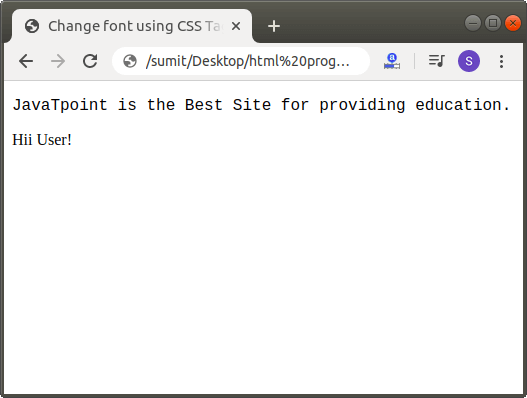
When we run the above Html code, then we will see the following output in a browser: