In HTML, we can change the size of any text using the following different ways:
- Using HTML tag
- Using an Inline style attribute
- Using internal CSS
Using HTML tag
If we want to change the size of a text using Html tag which is to be displayed on a web page, we have to follow the steps which are given below. Using these steps, we can easily change the size of any text:
Step 1: Firstly, we have to type the Html code in any text editor or open the existing Html file in the text editor in which we want to use the Html tag for changing the font size.
<!Doctype Html>
<Html>
<Head>
<Title>
Change the text Size Using HTML tag
</Title>
</Head>
<Body>
JavaTpoint   <br>
Html Tutorial   <br>
How to Change the Font size in Html
</Body>
</Html>
Step 2: Now, move the cursor at the starting of that text whose size we want to change. And then, type the Html <font> tag at that position.
<font> Single Line text and statements Step 3: Then, we have to close the font tag at the end of the text whose size we want to change.
<font> Single Line text and statements </font> Step 4: Now, we have to add the attribute of the font tag whose name is “size”. So, type the Size attribute within the starting <font> tag. And, then we have to give the size which we want to use on the text. We can give the value of size from 1 to 7. So, type the number in the Size attribute as described in the following block.
<!Doctype Html>
<Html>
<Head>
<Title>
Change the text Size Using HTML tag
</Title>
</Head>
<Body>
<font size="1">
JavaTpoint   <br>
</font>
<font size="2">
Html Tutorial   <br>
</font>
<font size="3">
How
</font>
<font size="4">
to
</font>
<font size="5">
Change
</font>
<font size="6">
the
</font>
<font size="7">
Font Size.
</font>
</Body>
</Html>
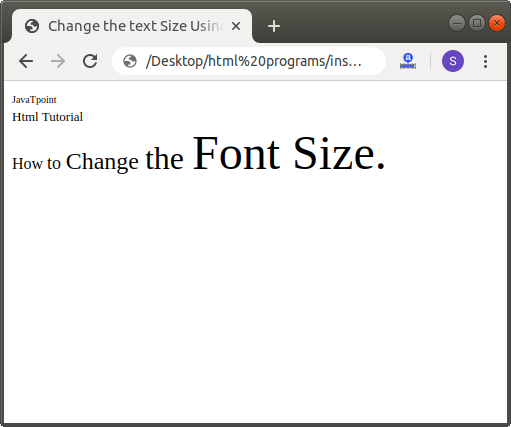
Step 5: And, at last, we have to save the Html code in the text editor and run the code. After executing, we will see the output in the browser. The following screenshot shows the output of the above Html Code:
Using an Inline Style attribute
If we want to change the size of a text using an inline style attribute which is to be displayed on a web page, we have to follow the steps which are given below. Using these steps, we can easily change the text size.
Step 1: Firstly, we have to type the Html code in any text editor or open the existing Html file in the text editor in which we want to use the style attribute for changing the size of a text.
<!Doctype Html>
<Html>
<Head>
<Title>
Change Size using style attribute
</Title>
</Head>
<Body>
This page helps you to understand how to change the Size of a text/font.
And, this section helps you to understand how to change the text or font size using the style attribute.
</Body>
</Html>
Step 2: Now, place the cursor at the starting of that text whose size we want to change. And then, type the inline style attribute within any element. Here, we use the <p> (paragraph) tag:
<p style="font-size: ; "> Any Text whose font we want to Change Step 3: In this step, we have to give the size. So, type the size in the font-size property of the style attribute.
<p style="font-size:14px ; "> Any Text whose font we want to Change Step 4: Then, we have to close the element at the end of the text whose size we want to change.
<p style="font-size:14px ; "> Any Text whose font we want to Change </p> Step 5: And, at last, save the Html code which changes the text/font size using the CSS style attribute.
<!Doctype Html>
<Html>
<Head>
<Title>
Change Size using style attribute
</Title>
</Head>
<Body>
This page helps you to understand how to change the Size of a text/font.
<p style="font-size:28px ;">
And, this section helps you to understand how to change the text or font size using the style attribute. </p>
</Body>
</Html>
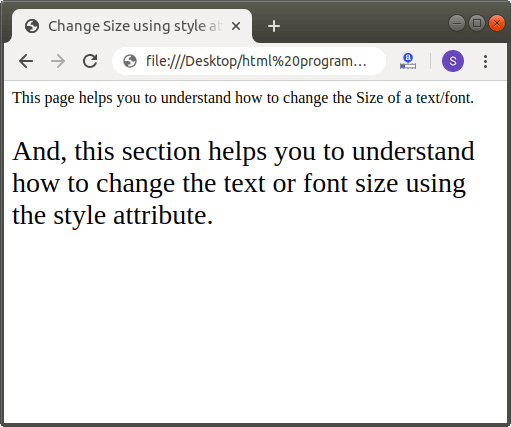
The output of the above code is shown in the following screenshot:
Using Internal CSS
If we want to change the text or font size using an internal cascading stylesheet which is to be displayed on a web page, we have to follow the steps which are given below. Using these steps, we can easily change the size of any text.
Step 1: Firstly, we have to type the Html code in any text editor or open the existing Html file in the text editor in which we want to use the internal CSS for changing the size of a text.
<!Doctype Html>
<Html>
<Head>
<Title>
Change Size using Internal CSS
</Title>
</Head>
<Body>
This page helps you to understand how to change the Text or Font Size.
In this Section, we used the internal CSS for changing the text size
</Body>
</Html>
Step 2: Now, we have to place the cursor in the head tag of the Html document and then define the styles inside the <style> tag as shown in the following block. And, then type the font-size attribute into the element selector.
<Head>
<style>
Body
{
font-size: 20px;
}
p
{
font-size:xx-large;
}
</style>
</Head>
Step 3: Now, we have to type the defined element selector before the text whose size we want to change.
<!Doctype Html>
<Html>
<Head>
<Title>
Change Size using Internal CSS
</Title>
<style>
Body
{
font-size: 20px;
}
p
{
font-size:xx-large;
}
</style>
</Head>
<Body>
This page helps you to understand how to change the Text or Font Size.
<p>
In this Section, we used the internal CSS for changing the text size. </p>
</Body>
</Html>
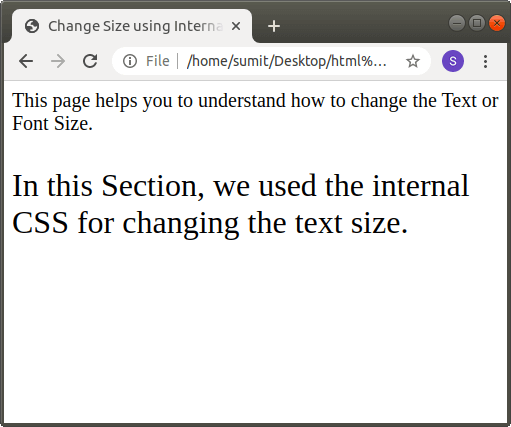
The output of the above code is shown in the following screenshot: