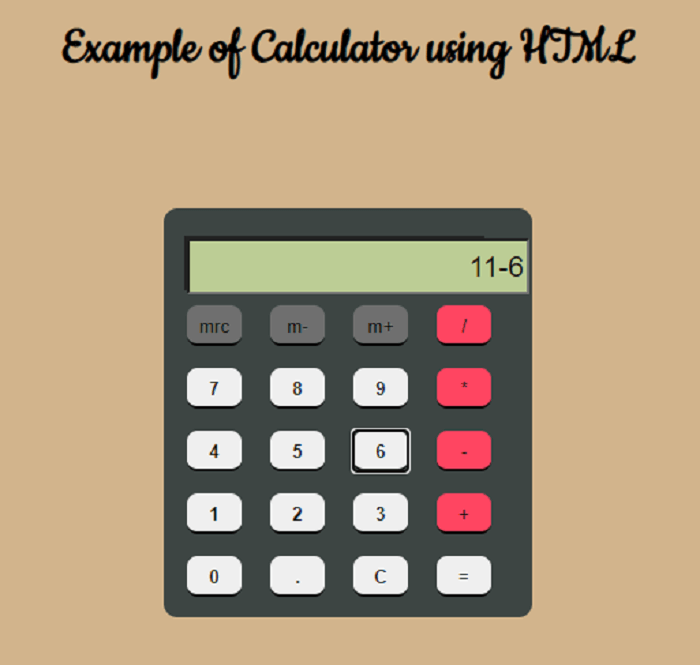
In this article, we will create a calculator using HTML with the help of various examples. At the beginning of this article, we will learn fundamental aspects of HTML. After that, we will know how to create a basic calculator with HTML.
What is HTML?
The Hypertext Mark-up Language is the standard mark-up language for documents designed to be displayed in a web browser. It can be used with various technologies such as CSS and scripting languages such as JavaScript and PHP.
HTML is text-based; an HTML file can be edited simply by opening it up in a Notepad++, Notepad, and sublime program, etc. Text editor can be used to create or edit an HTML file. It is named with a .html file extension.
What is a Calculator?
A Calculator is an electronic device capable of performing various mathematical calculations, such as addition, multiplication, subtraction, division, etc. Casio Company developed the first electronic calculator in 1957. It can be run on various operating systems on computers, smartphones, and tablets. We can create a calculator with the help of various developing tools, languages.
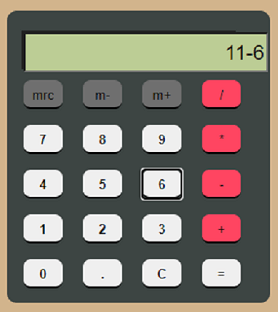
Let’s take some examples of Calculator with the help of HTML.
Example 1:
<! DOCTYPE html>
<html>
    <head>
    <meta charset="utf-8">
    <title>
         Calculator using HTML Example
    </title>
    <link href="https://fonts.googleapis.com/css2?family=Cookie&display=swap" rel="stylesheet">
    <!-- CSS property to create interactive
        calculator interface -->
    <style>
    html {
  height: 100vh;
  display: flex;
  align-items: center;
  justify-content: center;
  background-color: #2d3436;
  background-image: linear-gradient(315deg, #2d3436 0%, #000000 74%);
  font-family: 'Cookie', cursive;
}
.title {
margin-bottom: 10px;
padding: 5px 0;
font-size: 40px;
font-weight: bold;
text-align: center;
color: red;
font-family: 'Cookie', cursive;
}
input[type=button] {
  width: 60px;
  height: 60px;
  float: left;
  padding: 0;
  margin: 5px;
  box-sizing: border-box;
  background: #ecedef;
  border: none;
  font-size: 30px;
  line-height: 30px;
  border-radius: 50%;
  font-weight: 700;
  color: #5E5858;
  cursor: pointer;
}
input[type=text] {
  width: 270px;
  height: 60px;
  float: left;
  padding: 0;
  box-sizing: border-box;
  border: none;
  background: none;
  color: red;
  text-align: right;
  font-weight: 700;
  font-size: 60px;
  line-height: 60px;
  margin: 0 25px;
  }
.calculator {
  background-color: #c0c0c0;
  box-shadow: 0px 0px 0px 10px #666;
  border: 5px solid black;
  border-radius: 10px;
}
#display {
  height: 40px;
  text-align: right;
  background-color: black;
  border: 3px solid white;
  font-size: 18px;
  left: 2px;
  top: 2px;
  color: red;
}
.btnTop {
  color: white;
  background-color: #6f6f6f;
  font-size: 14px;
  margin: auto;
  width: 50px;
  height: 25px;
}
    </style>
</head>
<body>
    <div class = "title"  align="center">
        Example of Calculator using HTML
    </div>
    <form name="Calculator" class = "calculator" >
<table border="2" align="center" cellpadding="15" cellspacing="12" bgcolor="#c0c0c0">
<tr>
<td>
<input type="text" name="Input" Size="35" id="display">
<br>
</td>
</tr>
<tr>
<td>
<input type="button" name = "one" style="font-size:30px" value=" 1 " OnClick="Calculator.Input.value += '1'">
<input type="button" name = "two" style = "font-size:30px" value=" 2 " OnCLick="Calculator.Input.value += '2'">
<input type="button" name = "three" style="font-size:30px" value=" 3 " OnClick="Calculator.Input.value += '3'">
<input type="button" name="add" class ="btnTop" style="font-size:30px" value=" + " OnClick="Calculator.Input.value += ' + '">
<br>
<input type="button" name = "four" style="font-size:30px" value=" 4 " OnClick="Calculator.Input.value += '4'">
<input type="button" name = "five" style="font-size:30px" value=" 5 " OnCLick="Calculator.Input.value += '5'">
<input type="button" name = "six" style="font-size:30px" value=" 6 " OnClick="Calculator.Input.value += '6'">
<input type="button" name = "minus" style="font-size:30px" value=" - " OnClick="Calculator.Input.value += ' - '">
<br>
<input type="button" name = "seven" style="font-size:30px" value=" 7 " OnClick="Calculator.Input.value += '7'">
<input type="button" name = "eight" style="font-size:30px" value=" 8 " OnCLick="Calculator.Input.value += '8'">
<input type="button" name = "nine" style="font-size:30px" value=" 9 " OnClick="Calculator.Input.value += '9'">
<input type="button" name = "mul" style="font-size:30px" value=" * "
OnClick="Calculator.Input.value += ' * '">
<br>
<input type="button" name = "clear" style="font-size:30px" value=" c " OnClick="Calculator.Input.value = ''">
<input type="button" name="zero" style="font-size:30px" value=" 0 " OnClick="Calculator.Input.value += '0'">
<input type="button" name="DoIt" style="font-size:30px" value=" = " OnClick="Calculator.Input.value = eval(Calculator.Input.value)">
<input type="button" name="div" style="font-size:30px" value=" / " OnClick="Calculator.Input.value += ' / '">
<br>
</td>

</tr>
</table>
</form>
</body>
</html>
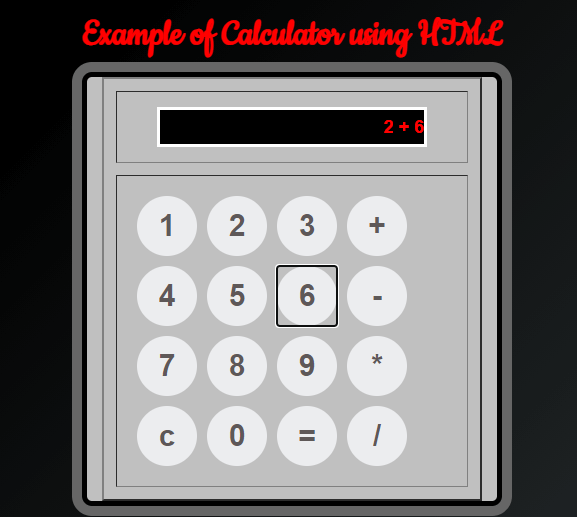
Explanation: In the above example, we have created a basic calculator with the help of HTML. with the help of this calculator, we can do an essential calculation function such as addition, subtraction, multiplication, division, etc.
Following is the output of this example:
Example 2:
<! DOCTYPE html>
<html>
    <head>
    <meta charset="utf-8">
    <title>
         Calculator using HTML Example
    </title>
    <link href="https://fonts.googleapis.com/css2?family=Cookie&display=swap" rel="stylesheet">
    <!-- CSS property to create interactive
        calculator interface -->
    <style>
        * {
  box-sizing: border-box;
  font-family: 'Roboto', sans-serif;
}
body {
  background: black;
}
.container {
  width: auto;
  margin: 20px;
  color:black;
}
.calc-body {
  width: 275px;
  margin: auto;
  min-height: 400px;
  border: solid 1px #3A4655;
  box-shadow: 0 8px 50px -7px black;
}
.calc-screen {
  background: #3A4655;
  width: 100%;
  height: 150px;
  padding: 20px;
}
.calc-operation {
  text-align: right;
  color: #727B86;
  font-size: 21px;
  padding-bottom: 10px;
  border-bottom: dotted 1px;
}
.calc-typed {
  margin-top: 20px;
  font-size: 45px;
  text-align: right;
  color: #fff;
}
.calc-button-row {
  width: 100%;
  background: #3C4857;
}
.button {
  width: 25%;
  background: #425062;
  color: #fff;
  padding: 20px;
  display: inline-block;
  font-size: 25px;
  text-align: center;
  vertical-align: middle;
  margin-right: -4px;
  border-right: solid 2px #3C4857;
  border-bottom: solid 2px #3C4857;
  transition: all 0.2s ease-in-out;
}
.button.l {
  color: #AEB3BA;
  background: #404D5E;
}
.button.c {
  color: #D95D4E;
  background: #404D5E;
}
.button:hover {
  background: #E0B612;
  transform: rotate(5deg);
}
.button.c:hover {
  background: #E0B612;
  color: #fff;
}
.button.l:hover {
  background: #E0B612;
  color: #fff;
}
.blink-me {
  color: #E0B612;
}
html {
  height: 100vh;
  display: flex;
  align-items: center;
  justify-content: center;
  background-color: #2d3436;
  background-image: linear-gradient(315deg, #2d3436 0%, #000000 74%);
  font-family: 'Cookie', cursive;
}
.title:hover {
  background: #E0B612;
  color: #fff;
}
.title {
margin-bottom: 10px;
padding: 5px 0;
font-size: 40px;
font-weight: bold;
text-align: center;
color: #AEB3BA;
font-family: 'Cookie', cursive;
}
input[type=button] {
  width: 60px;
  height: 60px;
  float: left;
  padding: 0;
  margin: 5px;
  box-sizing: border-box;
  background: #ecedef;
  border: none;
  font-size: 30px;
  line-height: 30px;
  border-radius: 50%;
  font-weight: 700;
  color: #5E5858;
  cursor: pointer;
}
input[type=text] {
  width: 270px;
  height: 60px;
  float: left;
  padding: 0;
  box-sizing: border-box;
  border: none;
  background: none;
  color: red;
  text-align: right;
  font-weight: 700;
  font-size: 60px;
  line-height: 60px;
  margin: 0 25px;
  }
.calculator {
  background-color: #c0c0c0;
  box-shadow: 0px 0px 0px 10px #666;
  border: 5px solid black;
  border-radius: 10px;
}
</style>
</head>
<body>
    <div class="container">
  <div class="calc-body">
    <div class="calc-screen">
      <div class="calc-operation"> 25 + 10 = </div>
      <div class="calc-typed"> 35 <span class="blink-me"> _ </span> </div>
    </div>
    <div class="calc-button-row">
      <div class="button c"> C </div>
      <div class="button l"> ? </div>
      <div class="button l"> % </div>
      <div class="button l"> / </div>
    </div>
    <div class="calc-button-row">
      <div class="button"> 7 </div>
      <div class="button"> 8 </div>
      <div class="button"> 9 </div>
      <div class="button l"> x </div>
    </div>
    <div class="calc-button-row">
      <div class="button"> 4 </div>
      <div class="button"> 5 </div>
      <div class="button"> 6 </div>
      <div class="button l"> ? </div>
    </div>
    <div class="calc-button-row">
      <div class="button"> 1 </div>
      <div class="button"> 2 </div>
      <div class="button"> 3 </div>
      <div class="button l"> + </div>
    </div>
    <div class="calc-button-row">
      <div class="button"> . </div>
      <div class="button"> 0 </div>
      <div class="button">
        < </div>
          <div class="button l"> = </div>
      </div>
    </div>
  </div>
</body>
</html>
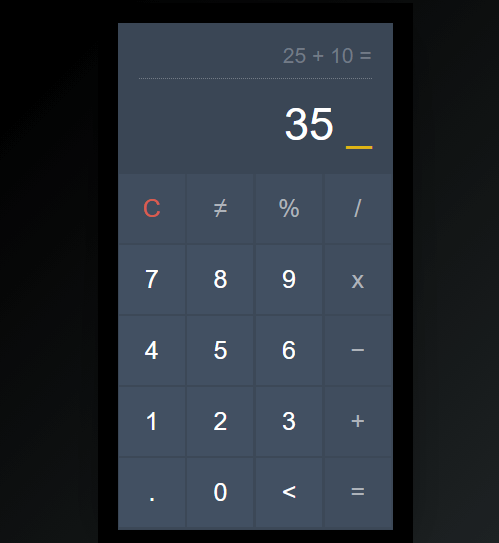
Explanation: In the above example, we have created a basic calculator with the help of HTML. With the help of this calculator, we can do an essential calculation function such as addition, subtraction, multiplication, division, etc.
Following is the output of this example:
Example 3:
<! DOCTYPE html>
<html>
    <head>
    <meta charset="utf-8">
    <title>
         Calculator using HTML Example
    </title>
    <link href="https://fonts.googleapis.com/css2?family=Cookie&display=swap" rel="stylesheet">
    <!-- CSS property to create interactive
        calculator interface -->
    <style>
body
{
background-color: tan;
}
.box
{
background-color: #3d4543;
height: 300px;
width: 270px;
border-radius: 10px;
position: relative;
top: 80px;
left: 40%;
}
.display
{
background-color: #222;
width: 220px;
position: relative;
left: 15px;
top: 20px;
height: 40px;
}
.display input
{
position: relative;
left: 2px;
top: 2px;
height: 35px;
color: black;
background-color: #bccd95;
font-size: 21px;
text-align: right;
}
.keys
{
position: relative;
top: 15px;
}
.button
{
width: 40px;
height: 30px;
border: none;
border-radius: 8px;
margin-left: 17px;
cursor: pointer;
border-top: 2px solid transparent;
}
.button.gray
{
color: black;
font-color: black;
background-color: #6f6f6f;
border-bottom: black 2px solid;
border-top: 2px #6f6f6f solid;
}
.title:hover {
   color: #fff;
}
.title {
margin-bottom: 10px;
margin-top: 30px;
padding: 5px 0;
font-size: 40px;
font-weight: bold;
text-align: center;
color: black;
font-family: 'Cookie', cursive;
}

.button.pink
{
color: black;
background-color: #ff4561;
border-bottom: black 2px solid;
}
.button.black
{
color: black;
background-color: 303030;
border-bottom: black 2px solid;
border-top: 2px 303030 solid;
font-weight: bold;
}
.button.orange
{
color: black;
background-color: FF9933;
border-bottom: black 2px solid;
border-top: 2px FF9933 solid;
}
.gray:active
{
border-top: black 2px solid;
border-bottom: 2px #6f6f6f solid;
}
.pink:active
{
border-top:black 2px solid;
border-bottom:#ff4561 2px solid;
}
.black:active
{
border-top: black 2px solid;
border-bottom: #303030 2px solid;
}
.orange:active
{
border-top: black 2px solid;
border-bottom: FF9933 2px solid;
}
p
{
line-height: 10px;
}
</style>
</head>
<body>
    <div class = "title? align="centre">
        Example of Calculator using HTML
    </div>
    <div class="box">
        <div class="display">
        <input type="text" readonly size="18" id="d">
        </div>
        <div class="keys">
               <p> <input type="button" class="button gray" value="mrc" onclick='c("Created....................")'>
               <input type="button" class="button gray" value="m-" onclick='c("...............by............")'>
               <input type="button" class="button gray"
value="m+" onclick='c(".....................Anoop")'>
<input type="button" class="button pink" value="/" onclick='v("/")'> </p>
               <p> <input type="button" class="button black" value="7" onclick='v("7")'>
               <input type="button" class="button black" value="8" onclick='v("8")'>
               <input type="button" class="button black" value="9" onclick='v("9")'>
               <input type="button" class="button pink" value="*" onclick='v("*")'> </p>
               <p> <input type="button" class="button black" value="4" onclick='v("4")'>
               <input type="button" class="button black" value="5" onclick='v("5")'>
               <input type="button" class="button black" value="6" onclick='v("6")'>
<input type="button" class="button pink" value="-" onclick='v("-")'> </p>
               <p> <input type="button" class="button black" value="1" onclick='v("1")'>
               <input type="button" class="button black" value="2" onclick='v("2")'>
               <input type="button" class="button black" value="3" onclick='v("3")'>
               <input type="button" class="button pink" value="+" onclick='v("+")'> </p>
               <p> <input type="button" class="button black" value="0" onclick='v("0")'>
               <input type="button" class="button black" value="." onclick='v(".")'>
               <input type="button" class="button black" value="C" onclick='c("")'>
               <input type="button" class="button orange" value="=" onclick='e()'> </p>
        </div>
</div>
</body>
<script>
function c(val)
{
document.getElementById("d").value=val;
}
function v(val)
{document.getElementById("d").value+=val;
}
function e()
{
try
    {
     c(eval(document.getElementById("d").value))
    }
    catch(e)
    {
     c('Error') }
}
</script>
</html>
Explanation: In the above example, we have created a basic calculator with the help of HTML. With the help of this calculator, we can do an essential calculation function such as addition, subtraction, multiplication, division, etc.
Following is the output of this example: