This attribute specifies a short hint that describes the expected value of an input field. Placeholder texts are usually aligned on the left. We can use the text-align property to set the text alignment in the placeholder. In this article, we will learn how to align a placeholder text in html with the help of various examples.
Following are the various examples of aligning a placeholder text in html.
Example 1:
<! DOCTYPE html>
<html>
    <head>
<meta charset = "utf-8">
    <meta name = "viewport" content = "width=device-width, initial-scale=1,
        shrink-to-fit = no">
        <title> How to align Placeholder Text in HTML </title>
        <style>
@import url("https://fonts.googleapis.com/css?family=Lato");
* {
  margin: 0;
  padding: 0;
  -moz-box-sizing: border-box;
  -webkit-box-sizing: border-box;
  box-sizing: border-box;
}
body {
  background-color: #555;
  justify-content: center;
  font-family: 'VT323', monospace;
  font-size: 0.5rem;
 color: #fff;
  margin: 20px;
}
h1 {
  font-weight: normal;
  font-size: 40px;
  font-weight: normal;
  text-transform: uppercase;
  text-align: center;
}
h2 {
text-align: center;
color: #2079df;
font-size: 28px;
width: 100%;
 margin: 30px 10;
position: relative;
line-height: 58px;
font-weight: 400;
}
h3 {
color: white;
font-size: 18px;
width: 100%;
 margin: 10px 10;
position: relative;
line-height: 28px;
font-weight: 400;
}
h2:before {
content: " ";
position: absolute;
left: 50%;
bottom: 0;
width: 100px;
height: 2px;
 background-color: #2079df;
margin-left: -50px;
}
input[type="email"]::placeholder {
text-align: center;
    }
input[type="text"]::placeholder {
  text-align: right;
}
input[type="tel"]::placeholder {
 text-align: left;
}
input[type="email"]:-ms-input-placeholder
  {
text-align: center;
    }
input[type="email"]::-ms-input-placeholder {
    text-align: center;
    }
input {
  display: block;
  clear: both;
  width: 450px;
  margin-bottom: 10px;
  padding: 15px 10px;
  font-size: 14px;
  outline: none;
  border: none;
  background-color: #2c3e50;
  color: #aabed1;
  -moz-transition: all 0.2s ease-in;
  -o-transition: all 0.2s ease-in;
  -webkit-transition: all 0.2s ease-in;
  transition: all 0.2s ease-in;
}
input:-ms-input-placeholder {
  color: #476481;
}
textarea:-ms-input-placeholder {
  color: #476481;
}
input::-moz-placeholder {
  color: #476481;
}
input::-webkit-input-placeholder {
  color: #476481;
}
input:hover {
  background-color: #233140;
  color: #3e5871;
}
input:focus {
  background-color: #1a252f;
  color: #507192;
}
button {
  padding: .5rem;
  font-size: 2rem;
  font-weight: 800;
  border-radius: 4rem;
  border: 2px solid #4c575c;
  background: red;
  color: #E5E5E5;
  transition: all .25s ease 0s;
  cursor: pointer;
  text-align: center;
}
 button:focus {
  border-color: white;
  outline: none;
  box-shadow: 0 0 0 3px #409eff80;
}
        </style>
    </head>
    <body>
        <h1> Example </h1>
        <h2> How to align Placeholder Text in HTML </h2>
        <h3> Center Aligned <br> <input type = "email"
        placeholder = "Enter Email"> </h3> <br>
        <h3> Right Aligned <br> <input type="text"
        placeholder = "Enter Name"> </h3> <br>
        <h3> Left Aligned <br> <input type = "tel"
        placeholder = "Enter Phone Number"> </h3>
         <button align = "center"> Send </button>
    </body>
</html>
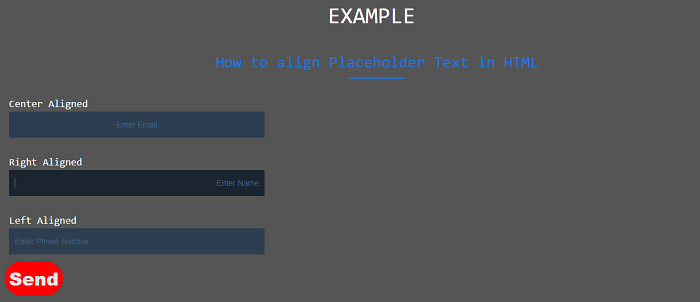
Explanation:
In the above example, we have created an example of how to align a placeholder text in html. In this, we can align a placeholder in left, right or center.
Output:
Following is the output of this example.
Example 2:
<! DOCTYPE html>
<html lang = "en">
<head>
    <meta charset = "utf-8">
    <meta name = "viewport" content = "width=device-width, initial-scale=1,
        shrink-to-fit = no">
        <title> How to align Placeholder Text in HTML </title>
    <link rel = "stylesheet" href = "https://maxcdn.bootstrapcdn.com/bootstrap/3.3.6/css/bootstrap.min.css" integrity="sha384-1q8mTJOASx8j1Au+a5WDVnPi2lkFfwwEAa8hDDdjZlpLegxhjVME1fgjWPGmkzs7" crossorigin="anonymous">
    </head>
<style>
input:placeholder-shown + label {
  opacity:0;
  transform: translateY(100%);
}
html {
  box-sizing: border-box;
  font-family: sans-serif;
}
a {
  color: #ffc600;
}
h2 {
  font-size: 12px;
}
*, *:before, *:after {
  box-sizing: inherit;
}
form {
  width: 500px;
  border: 1px solid grey;
  padding: 50px;
  background: white;
  box-shadow: 0 0 5px rgba(0, 0, 0, 0.41), 0 0 1px 20px rgba(0, 0, 0, 0.08);
   text-align: center;
}
input {
  width: 100%;
  padding: 20px;
  margin: 20px 0;
  border: 2px solid black;
  transition: all 0.1s;
  font-size: 20px;
}
.group {
  position: relative;
}
input + label {
  border: 1px solid black;
  position: absolute;
  top: 0;
  left: 20px;
  transition: all 0.1s;
  opacity: 1;
  background: white;
  border: 2px solid;
  border-width: 0 2px 0 2px;
  padding: 0 5px;
  transform: translateY(calc(50% + 5px));
}
input:focus {
  outline: 0;
  border-color: #ffc600;
}
input:focus + label {
  border-color: #ffc600;
}
body {
  background-color: #555;
  justify-content: center;
  font-family: 'VT323', monospace;
  font-size: 1.5rem;
 color: black;
  margin: 20px;
   text-align: center;
}
h1 {
  font-weight: normal;
  font-size: 40px;
  font-weight: normal;
  text-transform: uppercase;
  text-align: center;
}
h2 {
text-align: center;
color: #2079df;
font-size: 28px;
width: 100%;
 margin: 10px 10;
position: relative;
line-height: 58px;
font-weight: 400;
}
h2:before {
content: " ";
position: absolute;
left: 50%;
bottom: 0;
width: 100px;
height: 2px;
 background-color: #2079df;
margin-left: -50px;
 }
input[type="submit"] {
  background-color: #ffffff;
  border: 2px solid #EE7469;
  border-radius: 5px;
  color: #EE7469;
  margin-top: 20px;
  padding: 7px;
  width: 160px;
  text-align: center;
}
input[type="submit"] {
  margin-top: 20px;
  display: block;
  width: 60%;
  line-height: 2em;
  background: rgba(114,212,202,1);
  border-radius: 5px;
  border: 0;
  border-top: 1px solid #B2ECE6;
  box-shadow: 0 0 0 1px #46A294, 0 2px 2px #808389;
  color: #FFFFFF;
  font-size: 1.5em;
  text-align: center;
  text-shadow: 0 1px 2px #21756A;
}
input[type="submit"]:hover {
 background: linear-gradient(to bottom, rgba(107,198,186,1) 0%,rgba(57,175,154,1) 100%);
}
input[type="submit"]:active {
  box-shadow: inset 0 0 5px #000;
  background: linear-gradient(to bottom, rgba(57,175,154,1) 0%,rgba(107,198,186,1) 100%);
}
input:focus {
    outline: none;
    border-color: green;
}
</style>
<body>
<h1> Example </h1>
        <h2> How to align Placeholder Text in HTML </h2>
        <center>
    <form autocomplete = "off">
  <div class = "group">
    <input type = "text" placeholder = "Full Name" id = "name">
    <label for = "name"> Full Name </label>
  </div>
  <div class = "group">
    <input type = "email" placeholder = "Email Address" id = "email">
    <label for = "email"> Email Address </label>
  </div>
  <div class = "group">
    <input type = "tel" placeholder = "Phone Number" id = "Phone Number">
    <label for = "Phone Number"> Phone Number </label>
  </div>
<input type = "submit" value = "Submit">
</form>
</body>
</html>
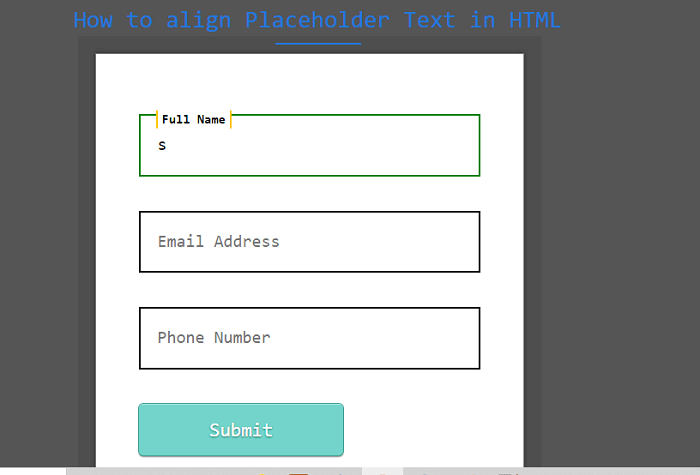
Explanation:
In the above example, we have created an example of how to align a placeholder text in html. In this, we can float a placeholder to the top of the input field.
Output:
Following is the output of this example.
Example 3:
<! DOCTYPE html>
<html lang="en">
<head>
    <meta charset = "utf-8">
    <meta name = "viewport" content = "width=device-width, initial-scale=1,
        shrink-to-fit = no">
        <title> How to align Placeholder Text in HTML </title>
    <link rel = "stylesheet" href = "https://maxcdn.bootstrapcdn.com/bootstrap/3.3.6/css/bootstrap.min.css" integrity="sha384-1q8mTJOASx8j1Au+a5WDVnPi2lkFfwwEAa8hDDdjZlpLegxhjVME1fgjWPGmkzs7" crossorigin="anonymous">
    </head>
<style>
.inner-container {
  background: #f8d9d5 none repeat scroll 0 0;
  border-bottom-left-radius: 40px;
  border-top-right-radius: 40px;
  margin: 100px auto;
  max-width: 500px;
  padding: 50px;
  text-align: center;
  transition: all 300ms linear 0s;
}
body {
  background-color: #555;
  justify-content: center;
  font-family: 'VT323', monospace;
  font-size: 1.5rem;
 color: #fff;
  margin: 20px;
}
.inner-container:hover {
  border-bottom-left-radius: 0;
  border-top-right-radius: 0;
  border-bottom-right-radius: 40px;
  border-top-left-radius: 40px;
}
h1 {
  font-weight: normal;
  font-size: 40px;
  font-weight: normal;
  text-transform: uppercase;
  text-align: center;
}
h2 {
text-align: center;
color: #2079df;
font-size: 28px;
width: 100%;
 margin: 10px 10;
position: relative;
line-height: 58px;
font-weight: 400;
}
h2:before {
content: " ";
position: absolute;
left: 50%;
bottom: 0;
width: 100px;
height: 2px;
 background-color: #2079df;
margin-left: -50px;
 }
input[type="email"]::placeholder {
text-align: center;
    }
.input-containe {
  margin: 20px 0;
  position: relative;
}
.input-containe input[type="text"] {
  -moz-border-bottom-colors: none;
  -moz-border-left-colors: none;
  -moz-border-right-colors: none;
  -moz-border-top-colors: none;
  background-color: #f0eaea;
  border-color: currentcolor currentcolor #aaaaaa;
  border-image: none;
  border-style: none none solid;
  border-width: medium medium 2px;
  height: 40px;
  padding: 0 9px;
  width: 100%;
}
.input-containe label {
  color: #ee7469;
  font-size: 16px;
  left: -1px;
  position: absolute;
  top: 8px;
  transition: all 300ms linear 0s;
}
.input-place:focus ~ label {
  font-size: 9px;
  top: 0;
}
.input-place:valid ~ label {
  font-size: 9px;
  top: 0;
}
::-moz-placeholder {
      color: #ee7469;
    font-size: 16px;
    font-weight: 600;
    opacity: 0.6;
}
input:focus::-moz-placeholder {
    color: transparent;
}
.input-containe::after {
  background: #ee7469 none repeat scroll 0 0;
  bottom: 0;
  content: " ";
  height: 2px;
  left: 0;
  position: absolute;
  transition: all 300ms ease 0s;
  width: 0;
}
.input-containe.active::after {
  width: 100%;
}
fieldset { border-color: red; }
.input-containe.active label {
  font-size: 12px;
  left: 2px;
  opacity: 1;
  top: -1px;
}
input[type="submit"] {
  background-color: #ffffff;
  border: 2px solid #EE7469;
  border-radius: 5px;
  color: #EE7469;
  margin-top: 20px;
  padding: 7px;
  width: 160px;
  text-align: center;
}
input[type="submit"] {
  margin-top: 20px;
  display: block;
  width: 60%;
  line-height: 2em;
  background: rgba(114,212,202,1);
  border-radius: 5px;
  border: 0;
  border-top: 1px solid #B2ECE6;
  box-shadow: 0 0 0 1px #46A294, 0 2px 2px #808389;
  color: #FFFFFF;
  font-size: 1.5em;
  text-align: center;
  text-shadow: 0 1px 2px #21756A;
}
input[type="submit"]:hover {
 background: linear-gradient(to bottom, rgba(107,198,186,1) 0%,rgba(57,175,154,1) 100%);
}
input[type="submit"]:active {
  box-shadow: inset 0 0 5px #000;
  background: linear-gradient(to bottom, rgba(57,175,154,1) 0%,rgba(107,198,186,1) 100%);
}
</style>
<body>
<h1> Example </h1>
        <h2> How to align Placeholder Text in HTML </h2>
    <div class = "container">
        <div class = "row">
            <div class = "col-lg12">
                <div class = "form container">
                    <div class = "inner-container">
                    <form action = " ">
                    <fieldset>
                    <div class = "input-containe">
                    <input type = "text" required = " " class = "input-place" placeholder = " ">
            <label class = "label"> Enter Name </label>
                            </div>
                    <div class = "input-containe">
                    <input type = "text" required = " " class = "input-place" placeholder = " ">
<label class = "label"> Enter Email </label>
                </div>
            <div class = "input-containe">
            <input type = "submit" value = "Submit">
                            </div>
                            </fieldset>
                        </form>
                    </div>
                </div>
            </div>
        </div>
    </div>
</body>
</html>
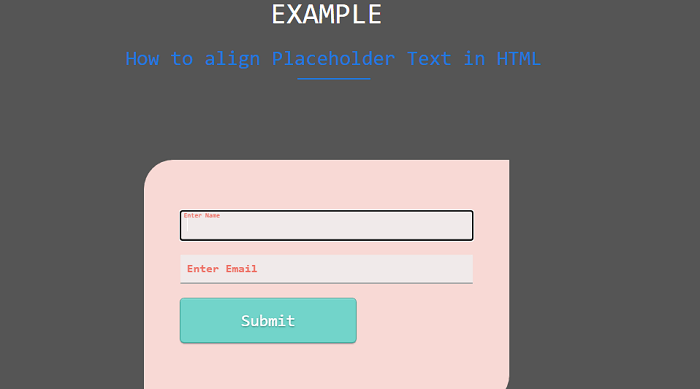
Explanation:
In the above example, we have created an example of how to align a placeholder text in html. In this, we can float a placeholder to the top of the input field.
Output:
Following is the output of this example.