HTML is the backbone of webpages, and it is used to structure websites and web apps.
In this tutorial, we will explore how to use the display property to hide or show components in HTML.
The style display attribute hides and shows the HTML DOM content by accessing the DOM element with JavaScript/jQuery.
To conceal an element, set its style display property to “none.”
document.getElementById("element").style.display = "none"; Adjust the style display attribute to “block” to illustrate an element.
document.getElementById("element").style.display = "block"; Techniques to demonstrate how the style display property works:
1. Create some divs, give them an id or class, and then style them as follows:
<div class="rounded" id="rounded"></div>
<div class="circle" id="circle"></div>
<div class="square" id="square"></div>
2. Width and height define the width and height of the content, 50% creates a circle, border-radius 0% creates a square border, and 25% creates a rounded shape, and float positions the divs, margin-right separates them with a gap on the right.
<style type="text/css">
    .rounded {

        border-radius: 25%;
        float: left;
                       width: 140px;
        height: 140px;
        margin-right: 60px;
    }
    .circle {

        border-radius: 50%;
        float: left;
                      width: 140px;
        height: 140px;
        margin-right: 60px;
    }
    .square {
        border-radius: 0%;
        float: left;
                        width: 140px;
        height: 140px;
        margin-right: 60px;
    }
3. Background-color specifies the colour of the div’s background.
                     #rounded {
    background-color: #F15412;
}
#circle {
    background-color: #EB1D36;
}
#square {
                      background-color: #F73D93;
           }
4. The document.getElementById will pick the div with the specified id.
<script type="text/javascript">
        document.getElementById("circle").onclick = function()
5. When we click on the div, the style.display = “none” will cause it to disappear.
.style.display = "none"; Application of style.display feature:
<html>
<head>

    <title>ABC....</title>

    <style type="text/css">


        .rounded {
            border-radius: 25%;
            float: left;
                        width: 140px;
        height: 140px;
            margin-right: 50px;
        }
        .circle {
        border-radius: 50%;
        float: left;
                        width: 140px;
        height: 140px;
        margin-right: 60px;
        }
        .square {
        border-radius: 0%;
        float: left;
                      width: 140px;
        height: 140px;
        margin-right: 60px;
        }
        #rounded {
            background-color: #F15412;
        }
        #circle {
            background-color: #EB1D36;
        }
        #square {
            background-color: #F73D93;
        }
    </style>

</head>

<body>

    <div class="rounded" id="rounded"></div>
    <div class="circle" id="circle"></div>
    <div class="square" id="square"></div>

    <script type="text/javascript">
        document.getElementById("rounded").onclick = function() {

            document.getElementById("rounded").style.display = "none";

        }
        document.getElementById("circle").onclick = function() {

            document.getElementById("circle").style.display = "none";

        }
        document.getElementById("square").onclick = function() {

            document.getElementById("square").style.display = "none";

        }
    </script>

</body>

</html>
Output:

After clicking on it, the square shape will vanish:
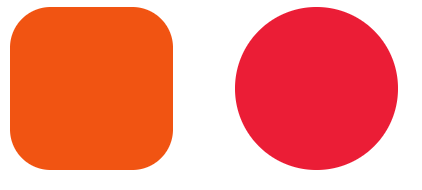
Similarly, clicking on a circle shape causes it to vanish:
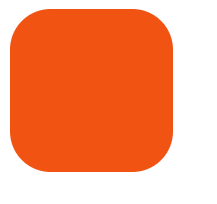
Similarly, clicking on a rounded shape causes it to vanish: