The padding-bottom property of an element sets the padding space on the bottom of an element. This means that it defines the area of space that the bottom of the element’s content needs.
The element’s padding can be used for computing the height and the width of an element. Generally, the width is equal to the width of the content area including the width of the padding area. For example, if the width of the element is “200px”, and the width of this element’s padding is “40px”, the final width will be “240px”. If you use the “border-box” value of the box-sizing property, this calculation can change.
| Initial Value | 0 |
| Applies to | All elements. An exception is made, when the display property is set to table-row-group, table-header-group, table-footer-group, table-row, table-column-group and table-column. It also applies to ::first-letter. |
| Inherited | No. |
| Animatable | Yes. Padding space is animatable. |
| Version | CSS1 |
| DOM Syntax | object.style.paddingBottom = “5%”; |
Syntax
padding-bottom: length | initial | inherit;Example of the padding-bottom property:
<!DOCTYPE html>
<html>
  <head>
    <title>Title of the document</title>
    <style>
      p {
        border: 2px solid #000;
        color: #1c87c9;
        padding-bottom: 40px;
      }
    </style>
  </head>
  <body>
    <h2>Padding-bottom property example</h2>
    <p>Lorem Ipsum is simply dummy text of the printing and typesetting industry.</p>
  </body>
</html>
Result
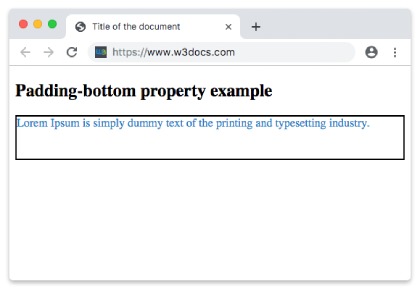
Example of the padding-bottom property with the “length” value:
<!DOCTYPE html>
<html>
  <head>
    <title>Title of the document</title>
    <style>
      p {
        border: 2px solid #000;
        color: #1c87c9;
        padding-bottom: 2cm;
      }
    </style>
  </head>
  <body>
    <h2>Padding-bottom property example</h2>
    <p>Lorem Ipsum is simply dummy text of the printing and typesetting industry.</p>
  </body>
</html>