In HTML, we can easily add the space in the document using the following different ways:
- Using Html
- Using Internal CSS
Using Html
If we want to add the space in the document using Html tag to show the space before and after the text then we have to follow the steps which are given below. Using these steps, we can easily add the space:
Step 1: Firstly, we have to type the Html code in any text editor or open the existing Html file in the text editor in which we want to add the space.
<!Doctype Html>
<Html>
<Head>
<Title>
Add the space using Html tags
</Title>
</Head>
<Body>
This page helps you to understand how to add the space in Html document.
And, this section helps you to understand how to add the space using the Html tags.
</Body>
</Html>
Step 2: Now, place the cursor where we want to add the space. And, then we have to press the spacebar from the keyboard. Basically, web page shows only one space between the two words. It does not matter that how much we have pressed the spacebar.
Step 3: If we want to show more than one space before or after the text on the webpage then we have to give the following tag:
This tag is used for displaying only one space between the text. Step 4: If we want to insert/add the longer space then we also use the following tags for showing two or four spaces between the text on the web page:
  This tag is used for displaying two spaces.
  This tag is used for displaying four spaces. Step 5: We can also add the <pre> tag, which displays the text on the web page as same as entered in the Html document.
<pre> Any text or paragraph </pre> Step 6: When we have added the space successfully in the document, then we have to save the Html file and run the file.
<!Doctype Html>
<Html>
<Head>
<Title>
Add the space using Html tags
</Title>
</Head>
<Body>
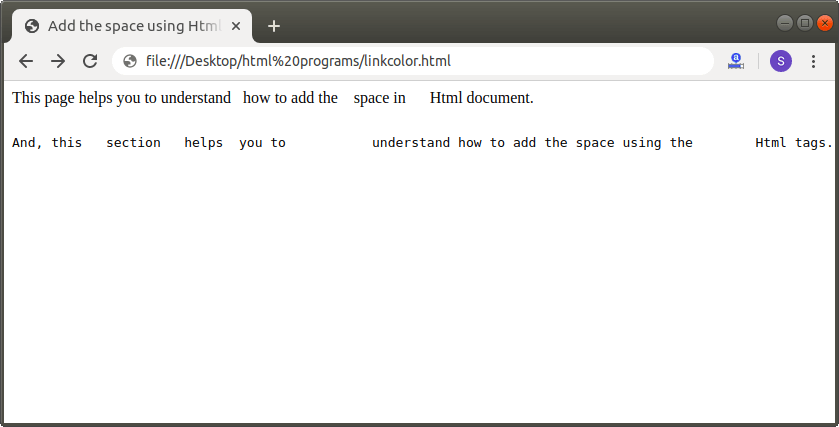
This page helps you to understand <!-- This tag shows one space between the 'understand' and 'how' words. -->
how to add the   <!-- This tag shows two space between the 'the' and 'space' words. --> space in   <!-- This tag shows four space between the 'in' and 'Html' words. -->
Html document.
<pre> <!-- This tag shows the same content which is written between the pre tags. -->
And, this section helps you to understand how to add the space using the Html tags.</pre>
</Body>
</Html> The output of above Html code is shown in the following screenshot:
Using Internal CSS
If we want to add the space in the document using the Internal Cascading stylesheet to show the space before and after the text, we have to follow the steps which are given below. Using these steps, we can easily add the space.
Step 1: Firstly, we have to type the Html code in any text editor or open the existing Html file in the text editor in which we want to use the Internal CSS for adding the space.
<!Doctype Html>
<Html>
<Head>
<Title>
Add the space using the Internal Cascading StyleSheet
</Title>
</Head>
<Body>
This page helps you to understand how to add the space in Html document.
And, this section helps you to understand how to add the space using the Internal Cascading Stylesheet.
</Body>
</Html>
Step 2: Now, we have to place the cursor in the head tag of the Html document and then define the styles inside the <style> tag as shown in the following block. And, then we have to type the text-indent attribute into the paragraph element.
<Head>
<Title>
Add the space using the Internal Cascading StyleSheet
</Title>
<style>
p
{
text-indent: 5em;
}
.tab1 {
            tab-size: 2;
        }
</style>
</Head>
Step 3: Now, we have to type the paragraph tag and the class tab1 in the <pre> tag of the Html. And, at last, we have to save the Html file and then run the file.
<!Doctype Html>
<Html>
<Head>
<Title>
Add the space using the Internal Cascading StyleSheet
</Title>
<style>
p
{
text-indent:5em;
}
.tab1 {
            tab-size: 2;
        }
</style>
</Head>
<Body>
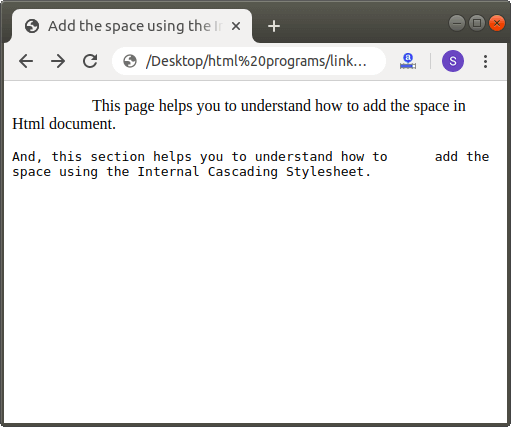
<p>This page helps you to understand how to add the space in Html document.
<pre class="tab1">
And, this section helps you to understand how to      add the  <br>space using the Internal Cascading Stylesheet.</pre> </p>
</Body>
</Html>
The output of the above Html code is shown in the following screenshot: